After logging into the website you are taken to the Cabinet Search Page (Home Page). Here you can select the desired Cabinet and enter search criteria to locate specific documents.
To begin a search, select the desired Cabinet from the "Select Cabinet" menu.
.png)
Index Search (default search method)
After selecting a Cabinet you can search for documents by entering specific keyword index information into one or more of the index fields and then clicking the search button or pressing the enter key on your keyboard. The search fields have a built-in auto complete feature that will attempt to predict and automatically complete the current word or phrase as it is being entered. This is designed to help finding your information quickly and easily!
.png)
Additional index information can be added into the search criteria to further narrow the search results.
.png)
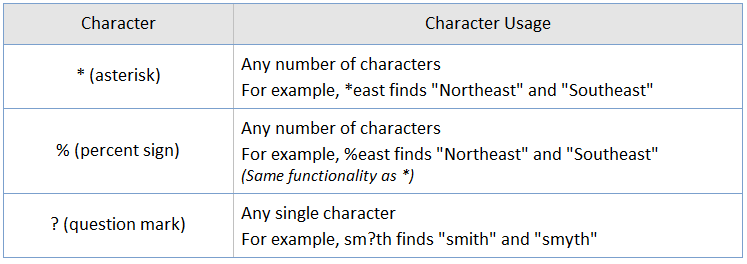
Wildcard characters can also be used to search for documents. Please refer to the table below for available wildcard characters and proper usage.
Cabinet Search Results will be displayed to the right of the Cabinet Search fields after clicking the search button or pressing the enter key on your keyboard.
Each item in the result list represents a single document and displays all of the document keyword index values, the page count, and file type.
If the search results return a large number of documents matching your search criteria you can either further narrow the search by entering additional keyword index information and performing the search again, or you can view additional pages of results by using the Page navigation buttons at the bottom of the search results.
.png)
Additionally the search results can be sorted by double clicking on any of the keyword index field headers or by accessing the header menu and selecting to sort Ascending or Descending. By default documents are sorted newest to oldest by date they are imported into the website.
Columns may also be temporarily hidden in the search results through the header menu columns selection.
Columns may also be temporarily re-ordered by simply dragging and dropping in the desired order.
.png)
Single Clicking on an individual row in the result list will load the Index Information and Document Preview which can be seen by scrolling down in the search result screen.
In this view keyword index information can be changed if needed. The document preview will only display the 1st page of the document, to view all pages you will need to open the document in the image viewer.
.png)
To view a document you can simply double click on the item in the list or right click on the item and select view from the right click menu.
Note that the right click menu in the search results screen provides some additional functionality that is available without opening the document in the image viewer.
(ie. View, Print, Download, Email, Email Link, Export to CSV, Delete)
.png)
After double clicking (or selecting View from the right click menu) the document will be loaded in the image viewer.
.png)
Free Text Search (optional search method)
Free Text Search requires OCR Process be enabled. Please contact your system administrator to have this feature enabled.
Free Text Search allows users to search for any word or phrase, on any document and is not limited to searching of indexed values.
To use Free Text Search, select Free Text Search on the Cabinet Search screen. Enter your search criteria (any word or phrase) and click the search button or press enter.
.png)
The Cabinet Search Results will return a list of documents which were found to contain the word or phrase entered into the Free Text Search form.
.png)
To view a document you can simply double click on the item in the list or right click on the item and select view from the right click menu.
When using Free Text Search, the documents will automatically shift to the first page which contains the word or phrase from the search criteria. The word or phrase will also be highlighted on the document as shown below using the example from above to search for documents containing "fuel surcharge"
.png)
Additional searching can be completed within the open document using the Search box on the Document Viewer toolbar.
Note that this search is also a Free Text Search and requires that OCR Process be enabled for the website and that all documents have completed OCR Processing.
.png)
Just as before, the word or phrase will be highlighted on the document as shown below using the example of "delivery charge".
.png)