Delete Pages
To delete pages within a document you must open the document in the Document Viewer.
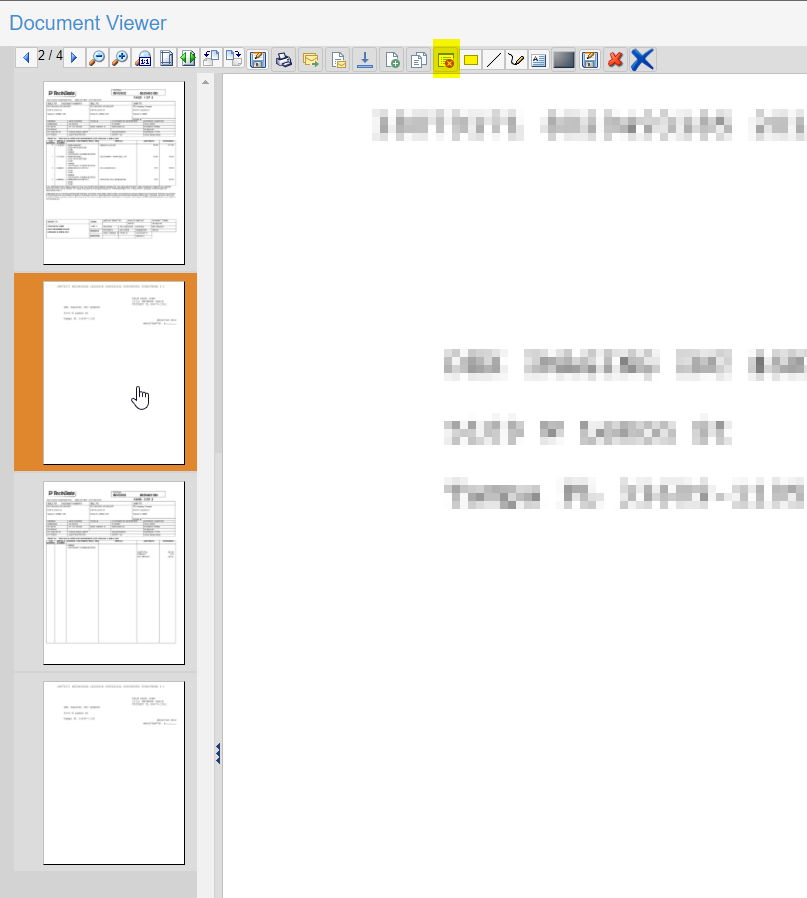
Select the page you want to delete by clicking on the page thumbnail.
To select Multiple Pages:
•CTRL - Hold down the CTRL key and click any of the pages in the thumbnails you would like to select.
•SHIFT - Hold down the SHIFT key and click the first and last page in the thumbnails to select a range of pages.
Then click the Delete Pages button.
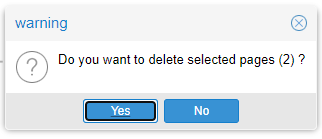
Click Yes to confirm.
Note:
•Deleted pages are permanently removed from Vaultview and cannot be restored.
Delete Documents
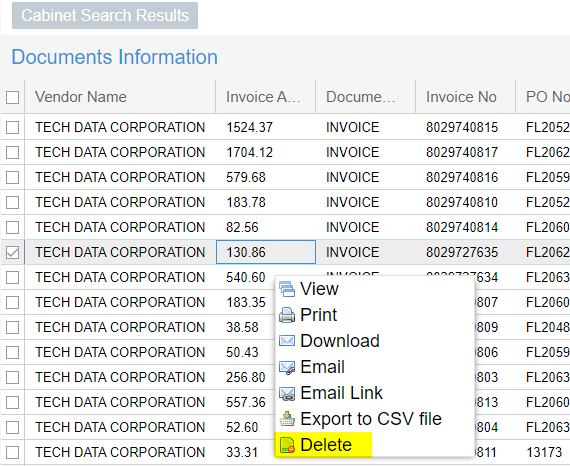
To delete a document, right click on the document in the search results and select delete.
You can select multiple documents by clicking the check box next to each document you want to delete in the search results, then right clicking on one of the checked documents, and selecting delete.
Note:
•Deleted documents are NOT permanently removed from Vaultview. Documents are permanently removed or restored through Cabinet Settings.
Permanently Delete / Restore Individual Documents
Find the Cabinet which contains your deleted documents.
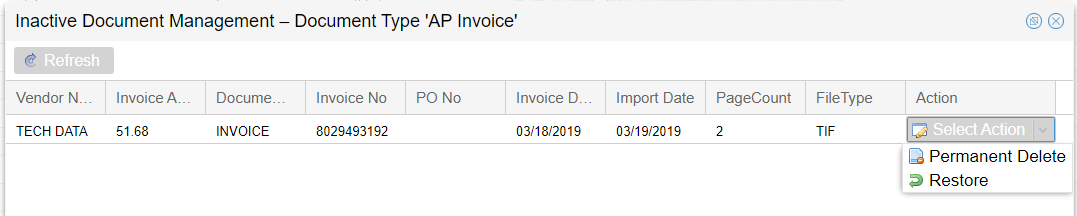
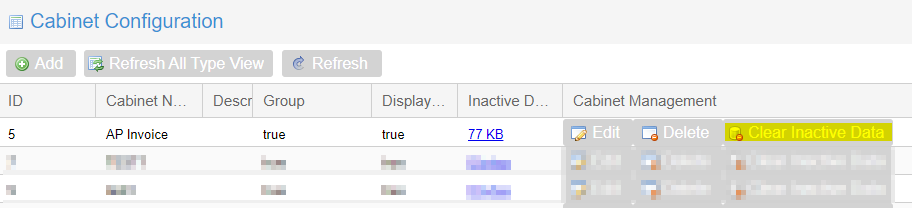
Click on the value under Inactive Data Size to view the list of deleted documents through Inactive Document Management.
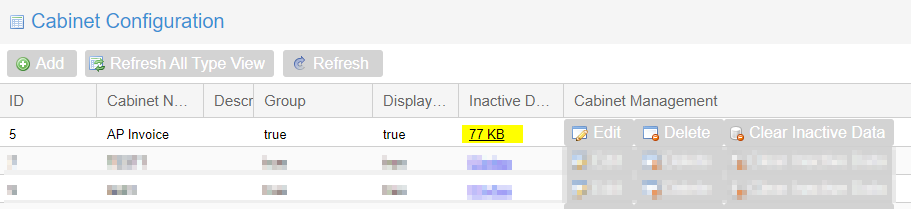
In the Inactive Document Management, use the Select Action menu to Permanently Delete or Restore Individual documents.
Permanently Delete All
To Permanently Delete all deleted Documents click the Clear Inactive Data button.
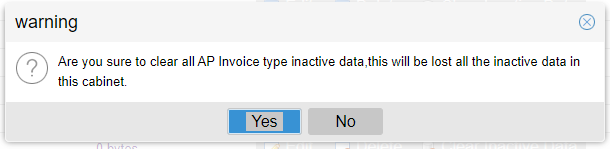
Click Yes when prompted to confirm permanently deleting all deleted documents.
Note:
•Permanent Delete is not reversible and will remove documents from Vaultview as well as your Total Cabinet Storage and Page Reports.
•Restore will immediately change the document status back to active and it will no longer be hidden from search results.