Vaultview uses SMTP2GO by default to send email from the email address associated with your Vaultview User Profile.
In some instances you may want to configure Vaultview to send through your organizations mail server.
Email can be configured to use your organizations email SMTP server under Email Settings.
Vaultview uses an internal email client which will launch with the selected documents attached. Simply enter your mail recipient, subject, message, and then click Send Email.
.png)
Sending Email
You can email documents from within the image viewer by clicking the Email Document button on the toolbar.
.png)
You can also email documents from the search results screen by selecting 1 or more documents, right clicking and selecting Email from the right click menu.
.png)
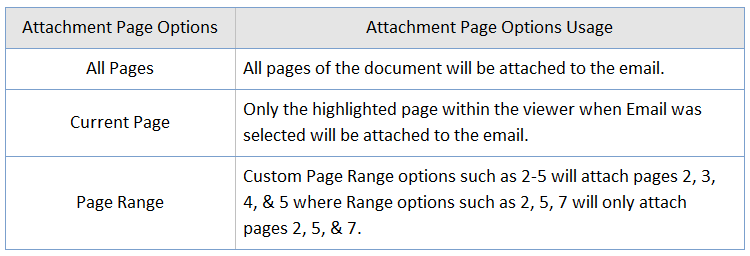
When emailing from within the document image viewer, by default only the Current Page will be attached to the email however you have the option to select All Pages or a Page Range. When emailing from the search results All Pages of the selected documents will be attached to the email.
.png)
Emailing from the Search Results
Email is available within the document search results.
.png)
Clicking Email will launch the email client with documents attached.
.png)
Email Settings
.png)
Check the Use Custom Email Settings check box.
.png)
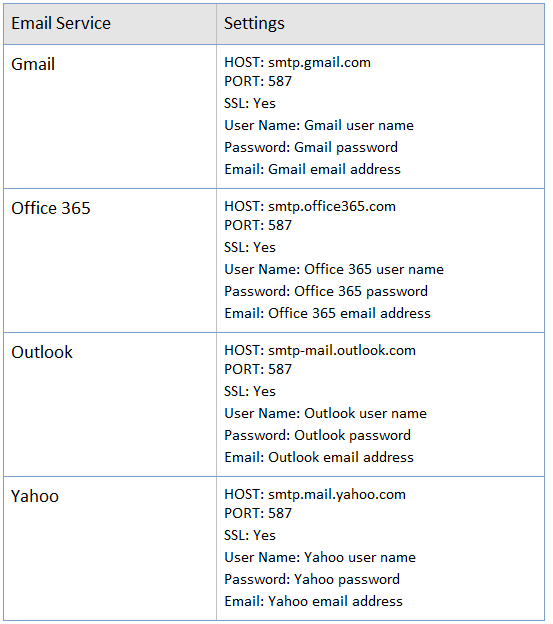
Enter your custom mail server host address and port information, and user name and password required to authenticate to your mail server.
.png)
Some common mail server settings are listed below. It is important to note that these settings are controlled by the third party mail service and are subject to change.
For the correct and most current settings please consult with your email administrator.
Some systems may also require 2 Factor Authentication and setup of an application password within the mail service. The application password would be used in the above Password and Confirm Password fields.